 2D Code Scanner
How the barcode scanner works
Scan on a Zebra device or your phone, then let the companion type the code on your PC.
- 1Scan
Use a Zebra imager or your phone camera to capture barcodes. The last code shows on device home.
- 2Pair over Wi‑Fi
Connect the scanner to the desktop companion on the same network. Saved PCs are listed under Connections.
- 3Type into the focused field
Scanned codes are entered where the cursor is — no extra paste step. After each scan chooses Enter, Tab, or nothing. Typing can be turned off in companion settings.
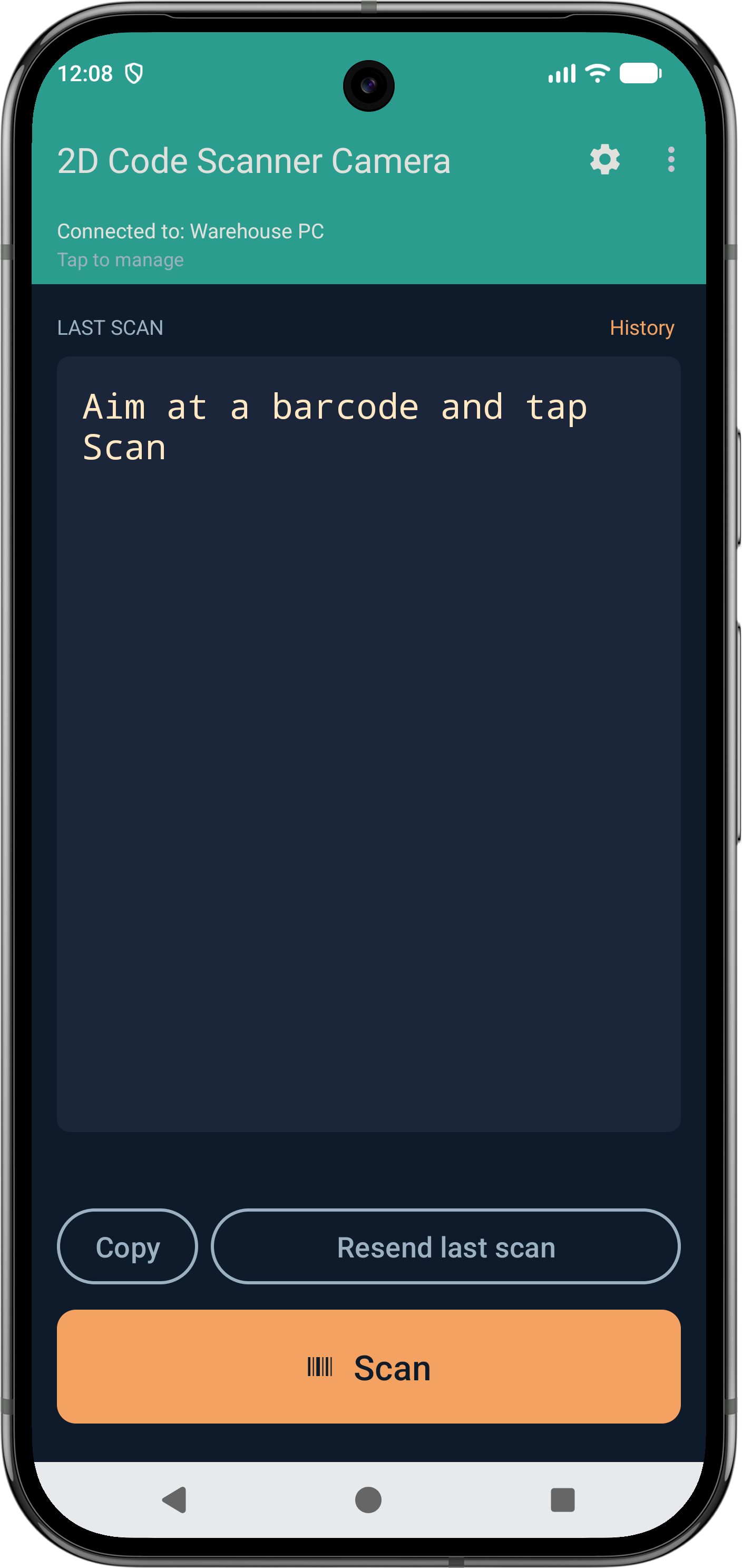
Device home
The home screen shows the live link and the last barcode. The menu holds Sessions and Settings.
- Connection line
- Shows which companion is connected, connecting, or not connected. Tap it to open Connections.
- Last scan
- The latest barcode and its symbology. Copy puts the barcode on the clipboard. The button stays off until a barcode has been scanned. You can also select the text.
- History
- Opens earlier scans, newest first. Each row can be copied or resent. Clear history removes those earlier scans and leaves the last scan on home. With scan history at 0, only the latest scan is kept.
- Resend last scan
- Sends that barcode to the PC again, using the current After each scan key. The button stays off until a barcode has been scanned. If the PC is not connected, the scan stays on the device.
- Scan
- On the Camera app, this opens the live preview and keeps reading until you tap Stop scanning. On a hardware imager, the button soft-triggers the scanner. The physical trigger keeps working either way. While the camera preview is open on a phone that has a flash, a flashlight button sits beside Scan.
Device settings
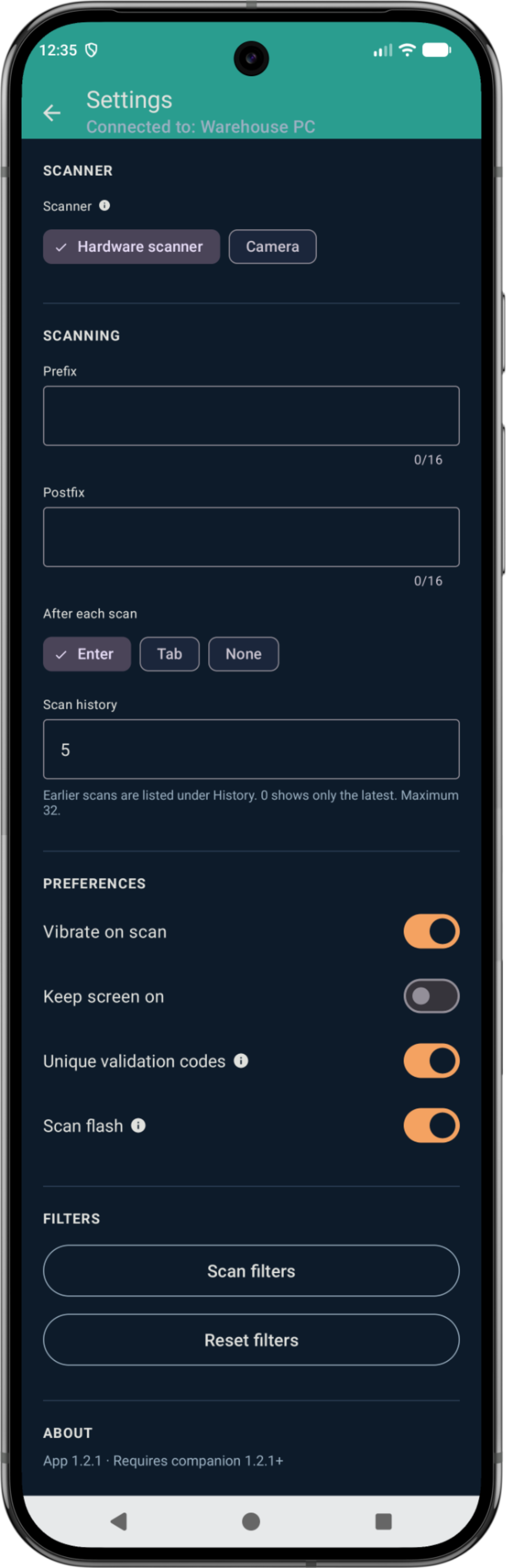
Open Settings from the gear on the home screen. The version line at the bottom shows the app version and the oldest companion it will accept.
- Scanner — Hardware scanner
- Shown when the app can use a built-in imager. Uses that imager and its trigger.
- Scanner — Camera
- Uses this device’s camera. The Camera app stays on the camera and hides this choice.
- Prefix
- Up to 16 characters added in front of the barcode that is shown and typed on the PC. Validation and counting still match the raw barcode.
- Postfix
- Up to 16 characters added after the barcode, on the same terms as Prefix.
- After each scan — Enter
- Default. The companion types the barcode, then presses Enter, which submits many fields and forms.
- After each scan — Tab
- Types the barcode, then presses Tab, which moves the cursor to the next field.
- After each scan — None
- Types the barcode and leaves the cursor where it is. Nothing is submitted and the field does not advance.
- Scan history
- How many earlier scans History keeps. 0 shows only the latest. The maximum is 32.
- Vibrate on scan
- On by default. The device vibrates when a scan is sent to the PC, ticks a validation item, or adds to a count.
- Keep screen on
- Off by default. When it is on, the scanner screen stays awake so the Wi‑Fi link is not paused. When the display turns off, the link pauses until the screen is on again.
- Unique validation codes
- On by default. A code already on a validation list is skipped when it is scanned or typed in again.
- Scan flash
- On by default. A short frame flashes at the screen edge after each scan. Green means the scan was accepted. Yellow means a filter blocked it. A set prefix paints a short piece of the left edge, and a set postfix paints a short piece of the right edge.
- Scan filters
- Opens Filters, where a scan can be limited by code type and content.
- Reset filters
- Clears the code-type and content filters.
- Scanner mode — Trigger
- Shown for a Zebra, Honeywell, Newland, or Datalogic imager. Stops after one code. Press the hardware trigger once, or tap Scan once.
- Scanner mode — Continuous
- Keeps reading until you stop. Hold the hardware trigger until you let go. Tap Scan to keep reading until you tap Scan again.
- Deduplicate
- Shown in Continuous mode. A code that matches the last accepted scan is dropped.
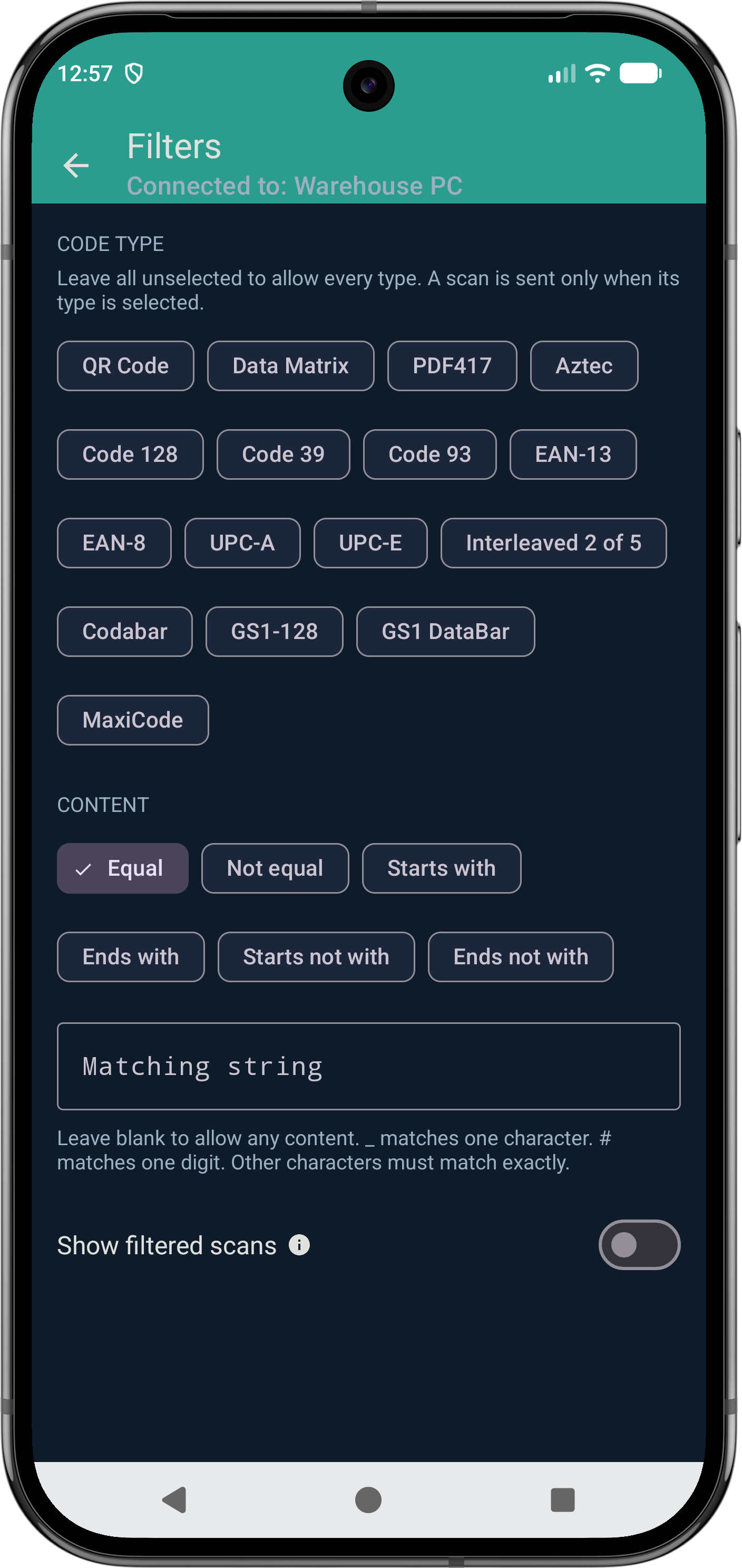
Scan filters
Open this from Settings → Scan filters. A scan that fails a filter is not typed to the PC. While a filter is on, home and an open validation or count show Filter active. Tap that line to open these filters. Long-press it to reset them.
- Code type
- Leave every type unselected to allow them all. A scan is sent only when its type is one of the selected types.
- Content
- Equal, Not equal, Starts with, Ends with, Starts not with, or Ends not with. The choice applies to the matching string.
- Matching string
- Leave it blank to allow any content.
_matches one character.#matches one digit. Other characters must match exactly. - Show filtered scans
- Off by default. A blocked scan still shows as the last scan and is kept in History. It is still not sent to the PC.
Connections
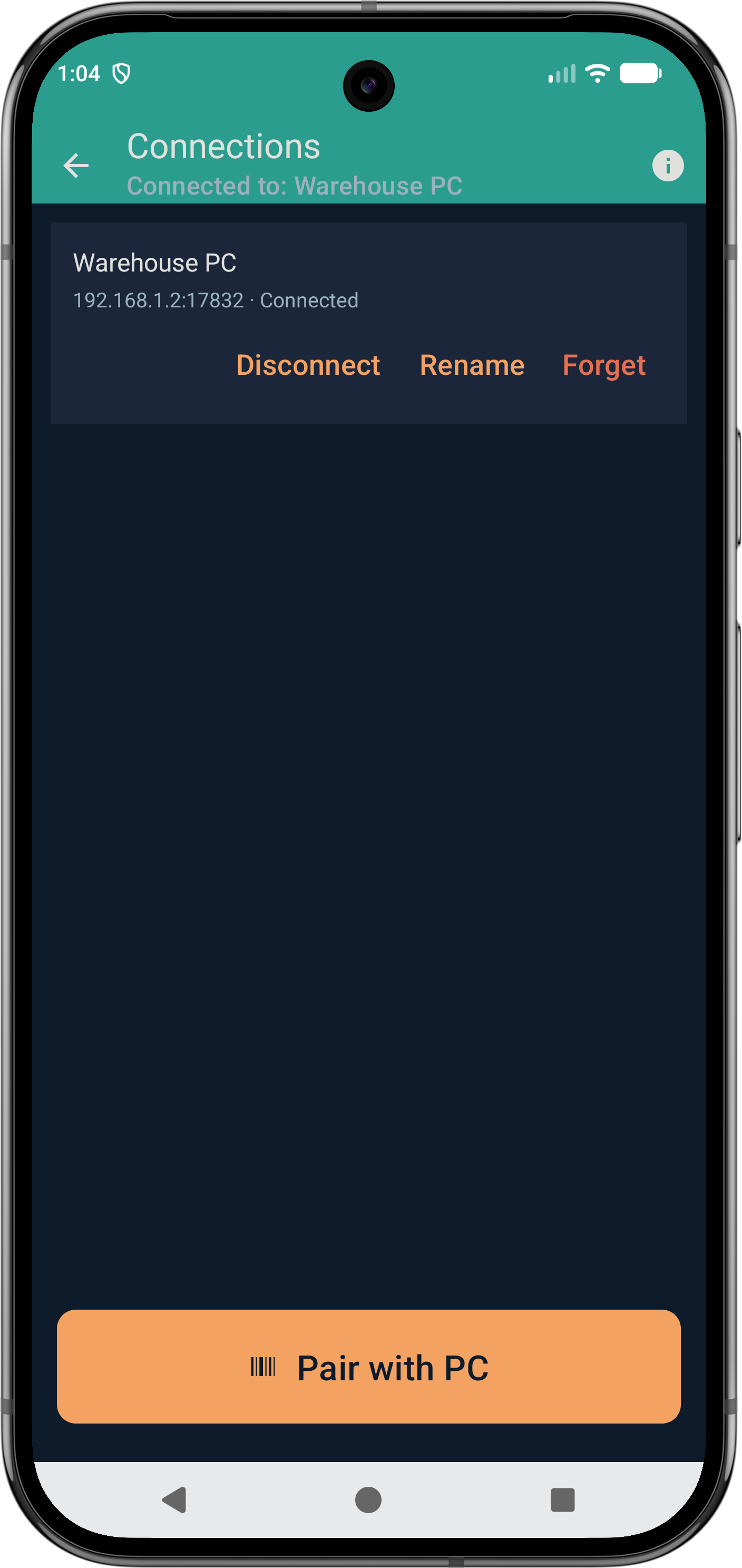
Saved companions live here. Scanning a new pairing QR adds one, or updates the same companion when its address changes.
- Disconnect
- On a connected companion. Drops the live link and keeps the saved profile, so you can connect again later. A saved companion that is not connected shows Connect, which makes it the active one and opens the link.
- Rename
- Changes the name you see in the list, for example Office PC. The pairing itself stays the same.
- Forget
- Removes the companion from the device and tells the companion. If it was the live connection, the link drops.
- Pairing help
- The info button restates the pairing steps: open the companion, stay on the same Wi‑Fi, and scan its QR.
- Pair with PC
- Starts a scan for the companion QR. On the camera the preview stays open until Stop scanning. On a hardware imager the button soft-triggers the scanner. The list hides while that scan is open.
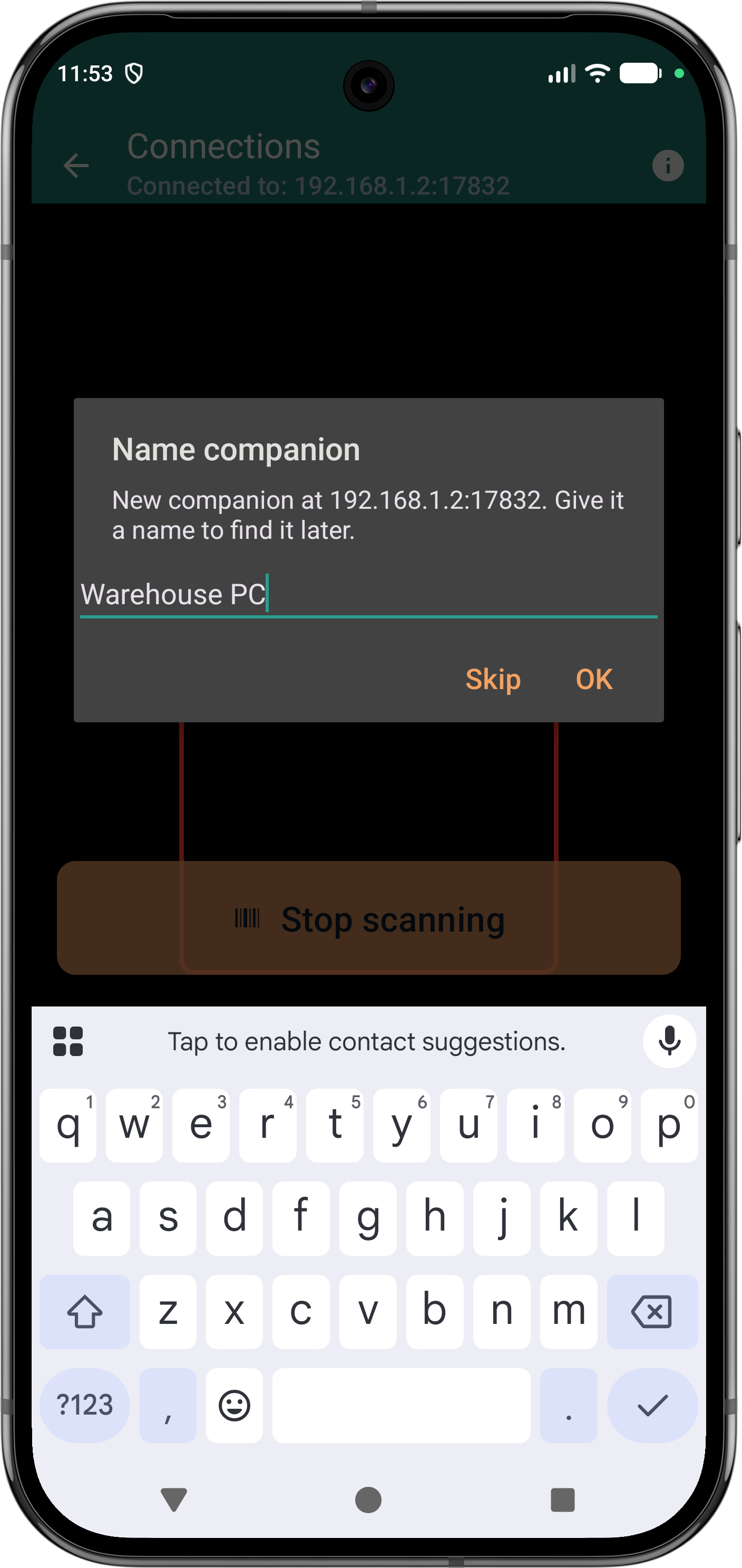
- Name companion
- A new companion asks for a name. Skip keeps the address as the label. OK saves the name you typed.
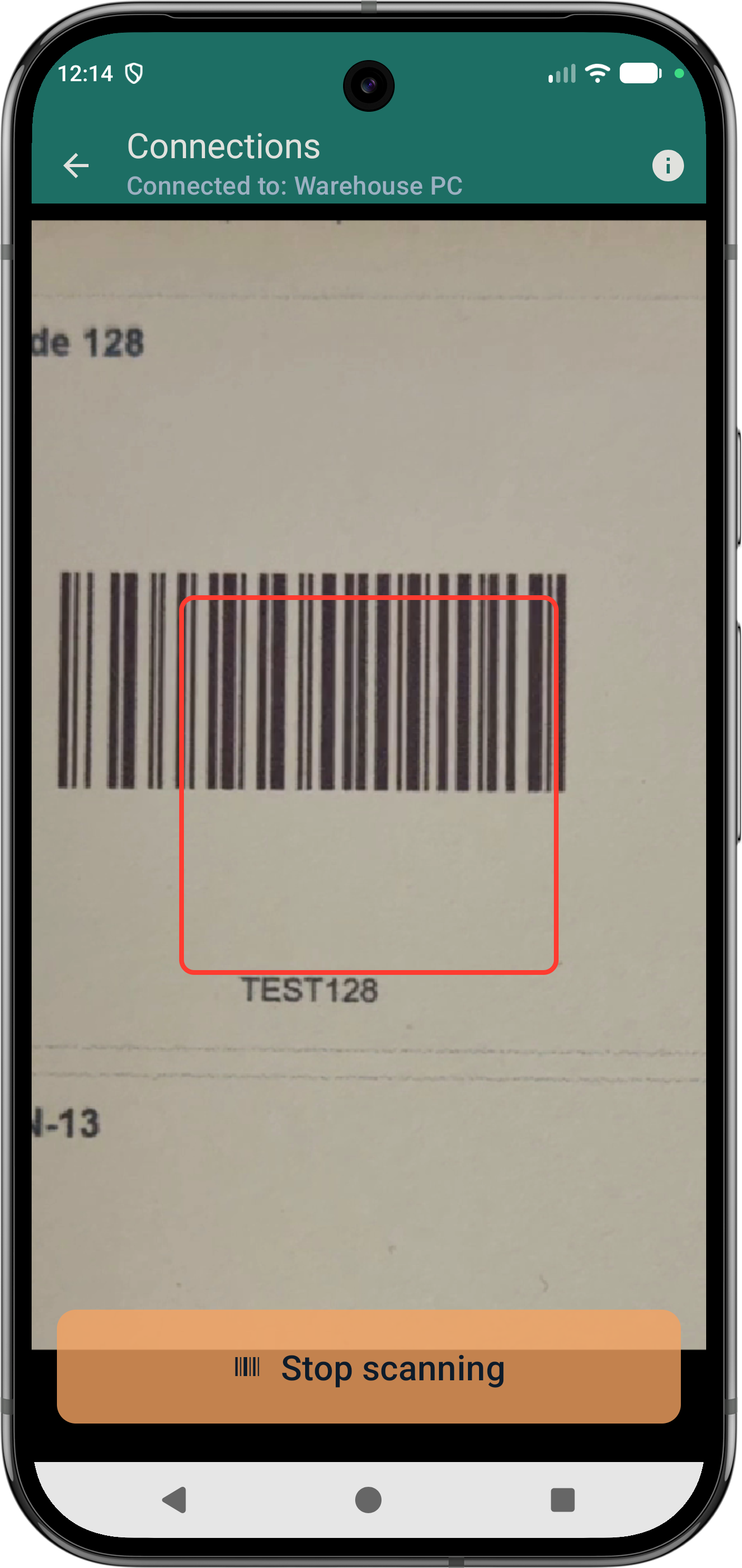
- Stop scanning
- Closes the camera preview and returns to the companion list. The preview stays up until you tap it, or until the pairing QR is read.
Sessions
Sessions is in the device menu. On the companion, Tools at the top right opens the same two modes. While a validation or count screen is open, scans stay on the device and are not typed into the PC.
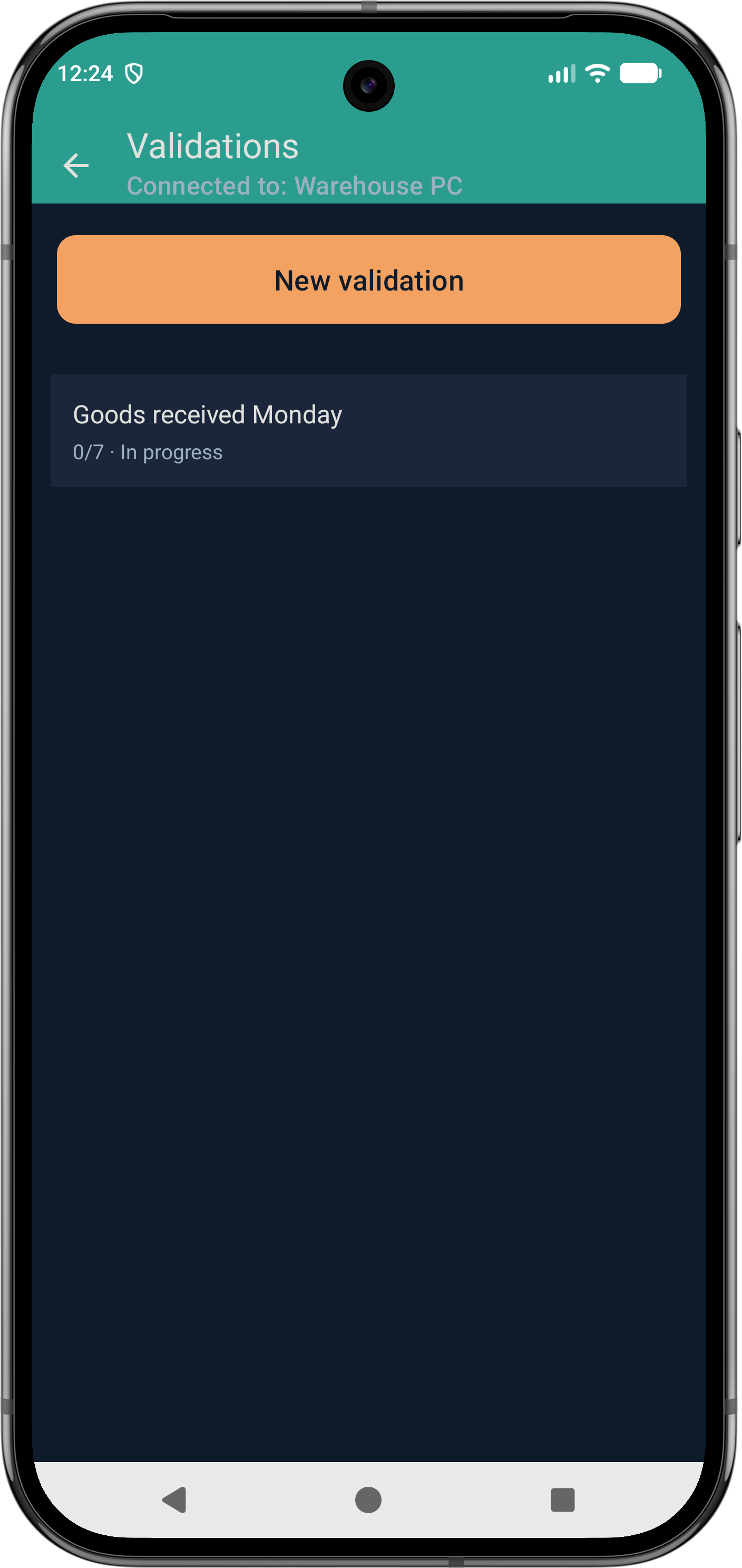
Validations
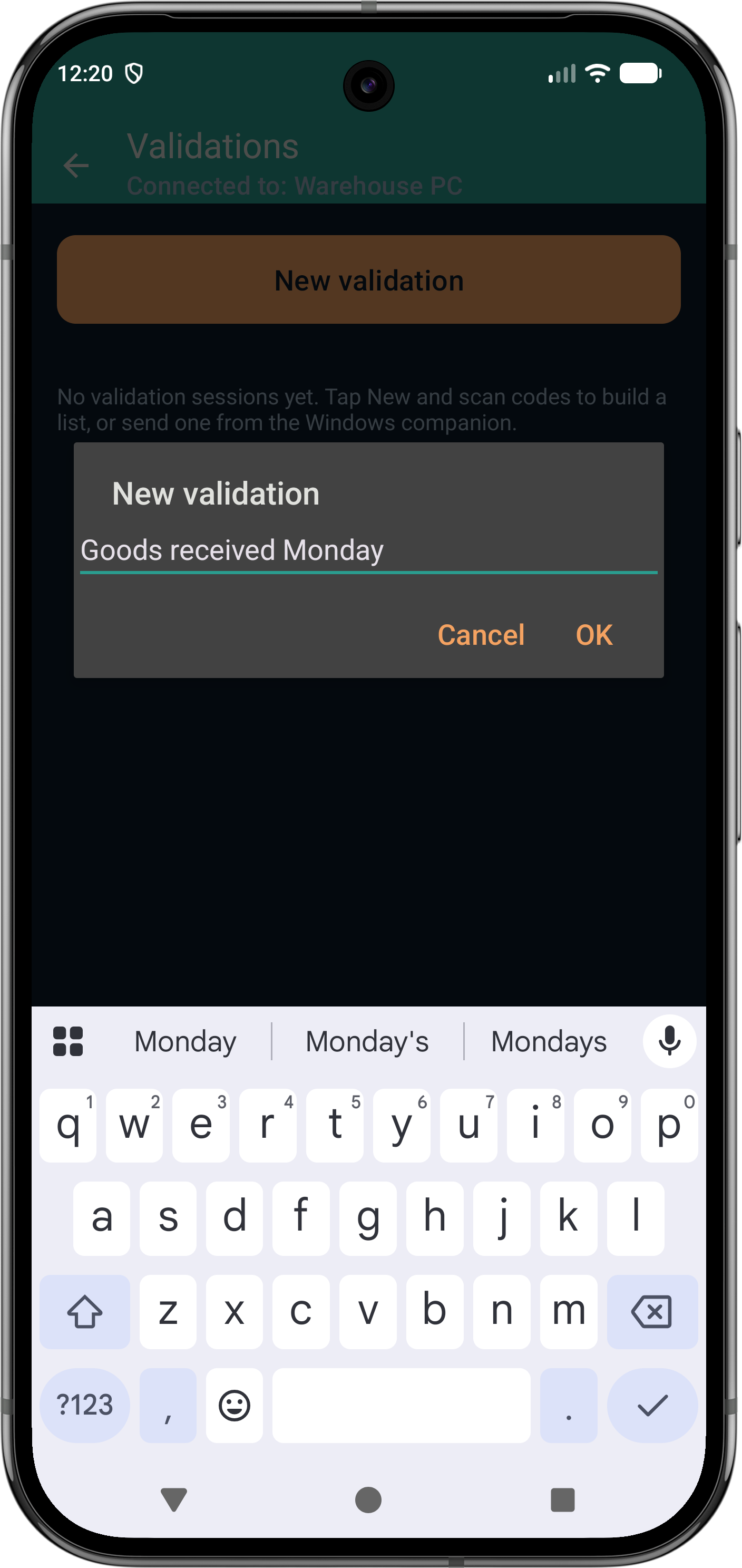
- New validation
- Starts a checklist on the device. You can also send one from the companion. Opening a session makes it the active list. Long-press a row in the list to delete it.
- Session name
- New validation asks for a name before the list is created. Cancel leaves the library as it was.
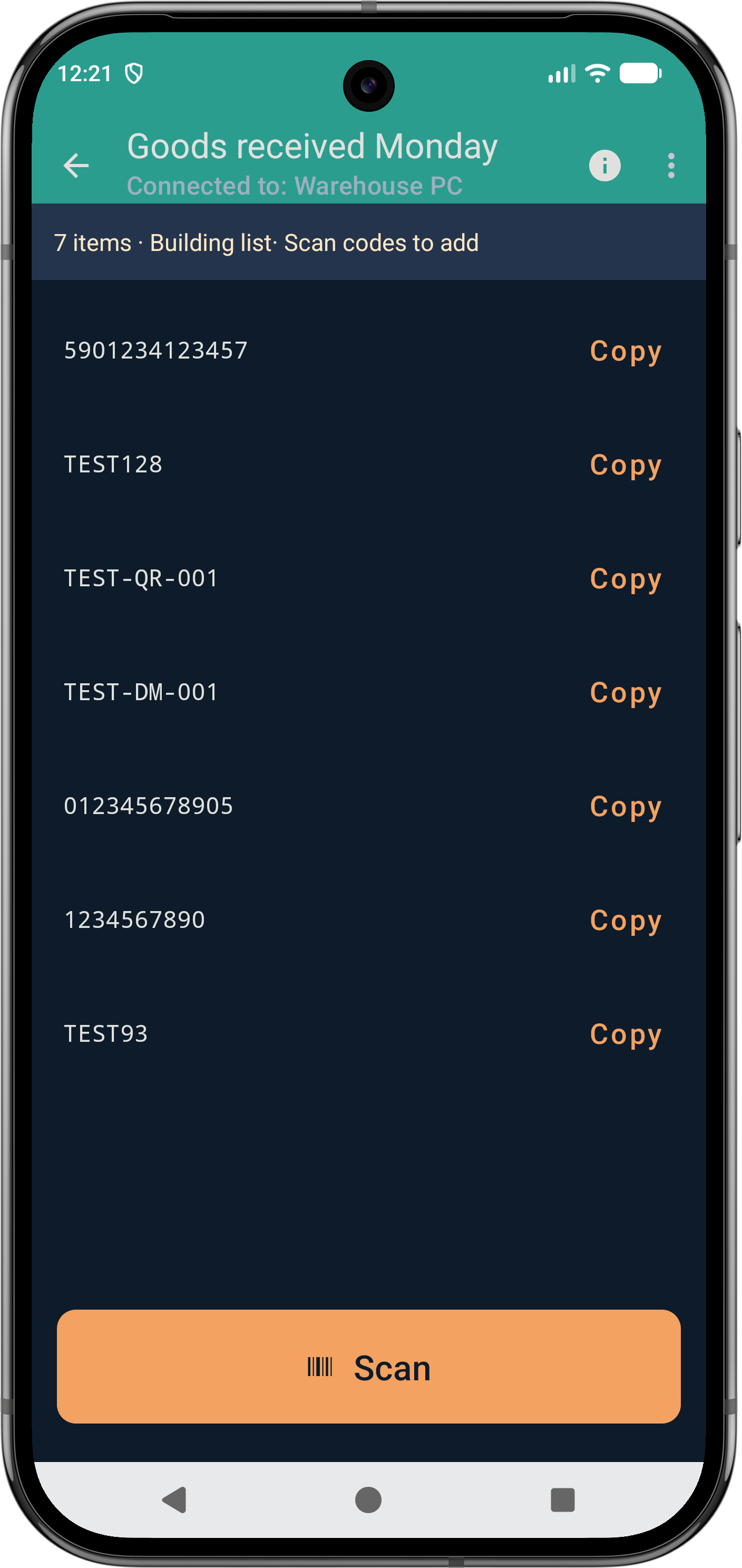
- Building the list
- A new session starts in building mode. Each scan adds an expected barcode. Those scans are not typed to the PC. The progress line shows how many items are in the list.
- Copy
- On a row. Copies that barcode.
- Scan
- Adds the next expected barcode. On the camera this opens the preview until Stop scanning.
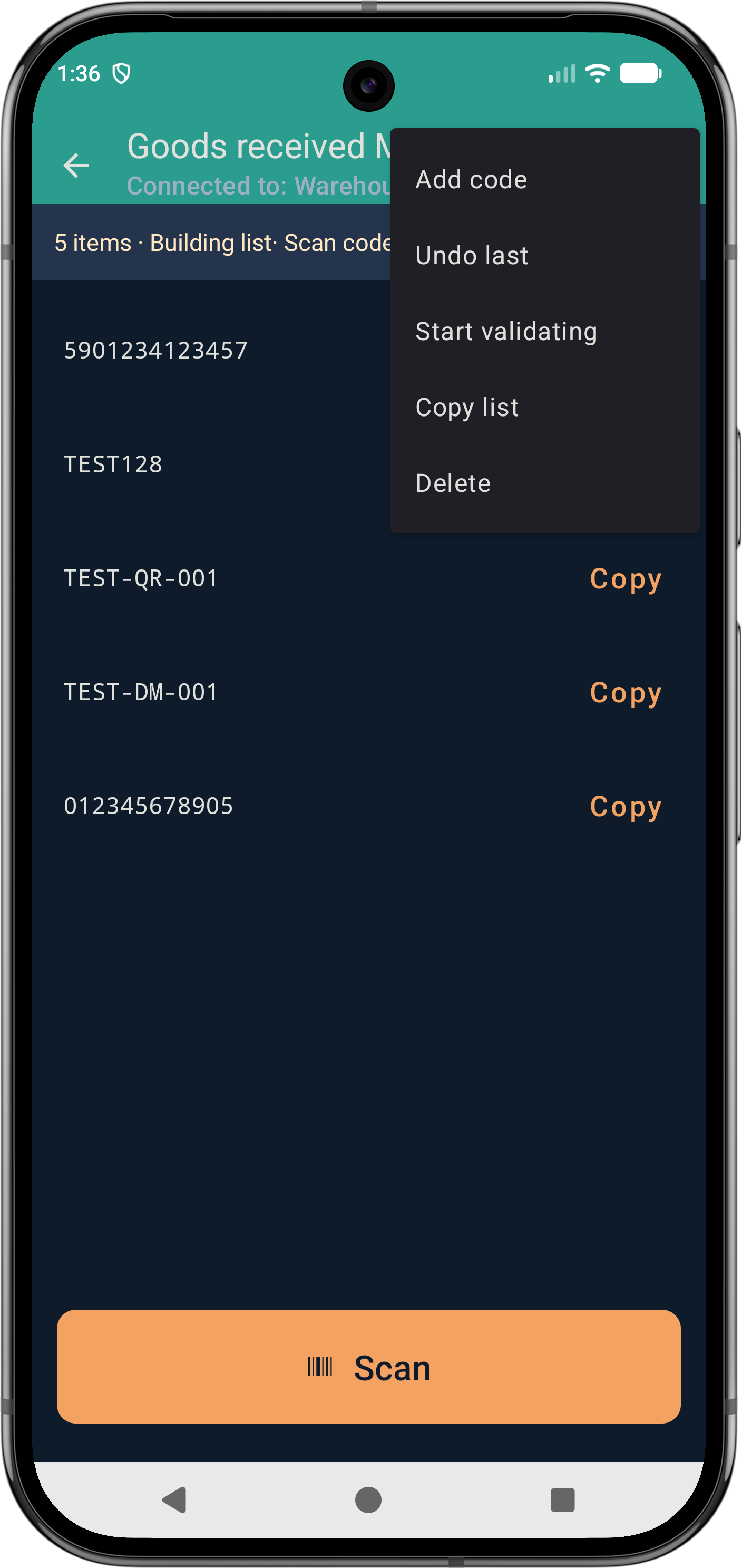
- Add code
- In the menu while the list is being built. The code is added like a scan.
- Undo last
- Removes the last barcode you added. It does nothing if the list is empty.
- Start validating
- Leaves building mode so later scans tick items off. It needs at least one barcode in the list. After this, Undo last is replaced by Reset / undo and Return to building.
- Copy list
- Copies every barcode, one per line. Nothing is copied when the list is empty.
- Delete
- Removes the session on the device. If the companion is connected, it is removed there too.
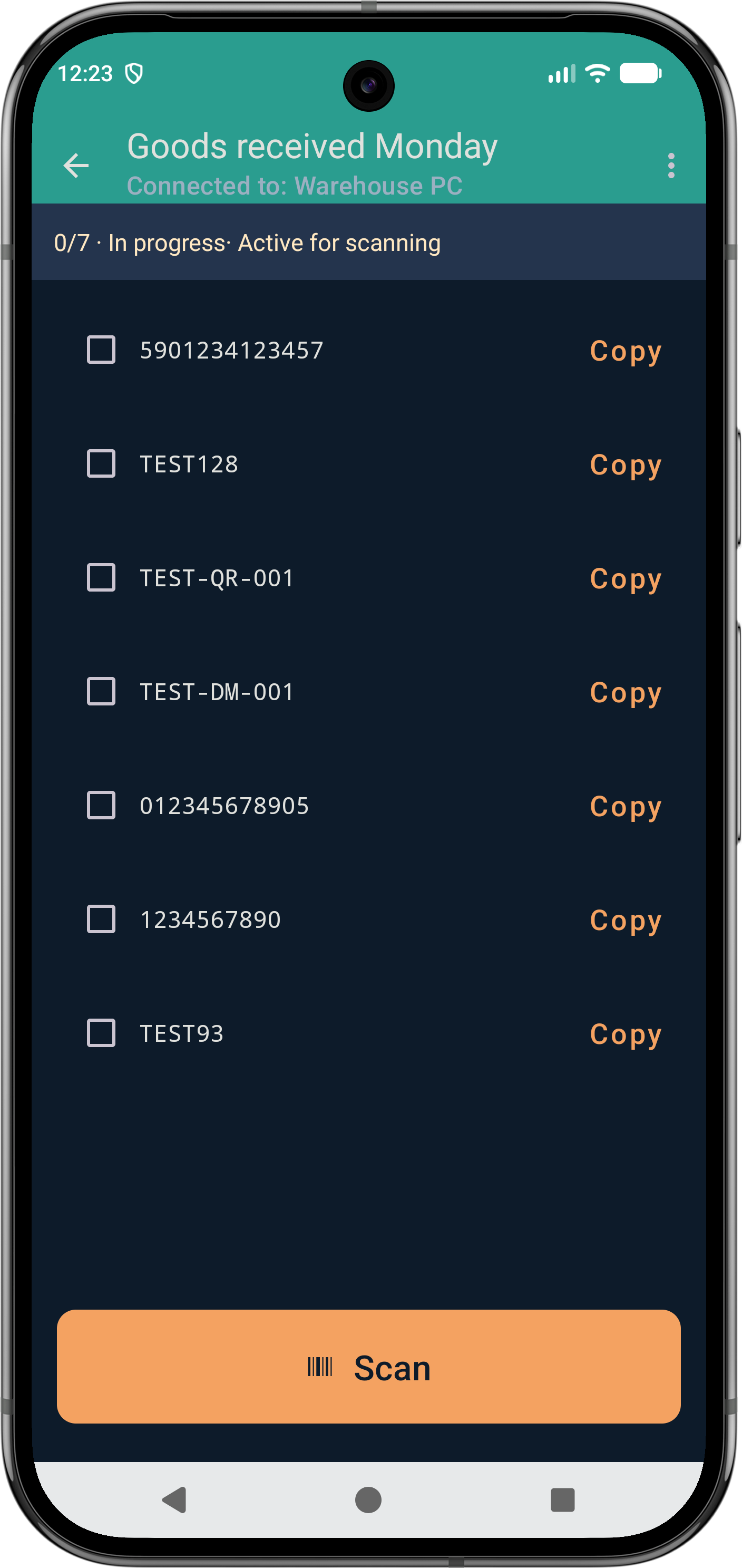
- Scanning a checklist
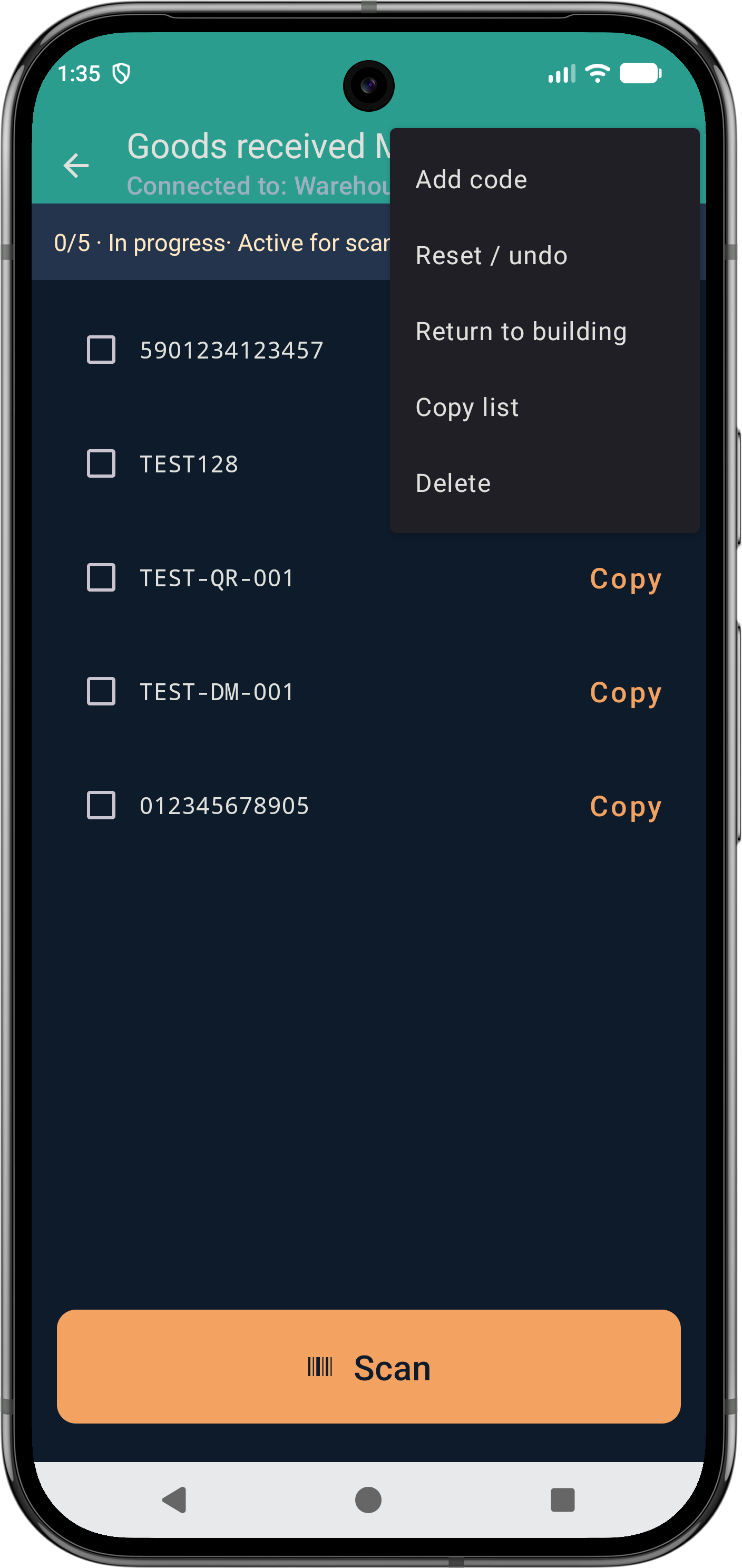
- A scan that matches an unchecked item ticks it. Matching items are not typed to the PC. The line shows matched/total, In progress or Finished, and whether this session is the active one. When every item is checked, the session is Finished.
- Copy
- On a row. Copies that barcode.
- Add code
- In the menu. Types a code when the item has no barcode to scan. It is added unchecked, and the checks already on the list stay. With Unique validation codes on, a code already on the list is refused.
- Reset / undo
- Clears every checkmark so you can scan the list again. It is available once at least one item is checked. There is no separate reverse-scan mode.
- Return to building
- Clears every checkmark and puts the list back in building mode, so scans add codes again and a long-press removes a row. Available after validation has started, including when nothing is checked yet.
- Copy list
- Copies every barcode, one per line. Nothing is copied when the list is empty.
- Delete
- Removes the session on the device. If the companion is connected, it is removed there too.
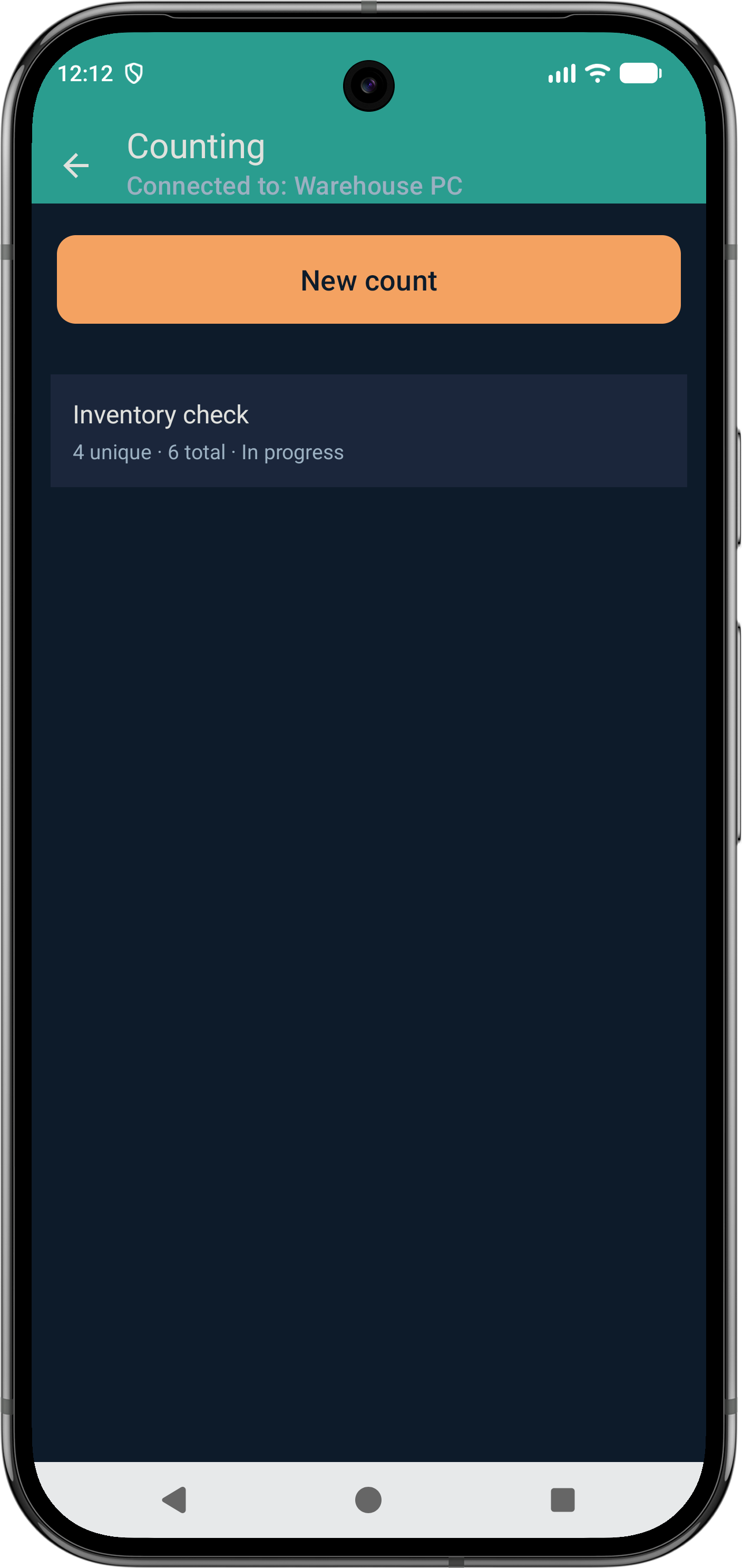
Counting
A count tallies how many times each barcode is scanned. Create one with New count on the device, or from the companion. Opening a count makes it the active tally. Long-press a row in the list to rename or delete it.
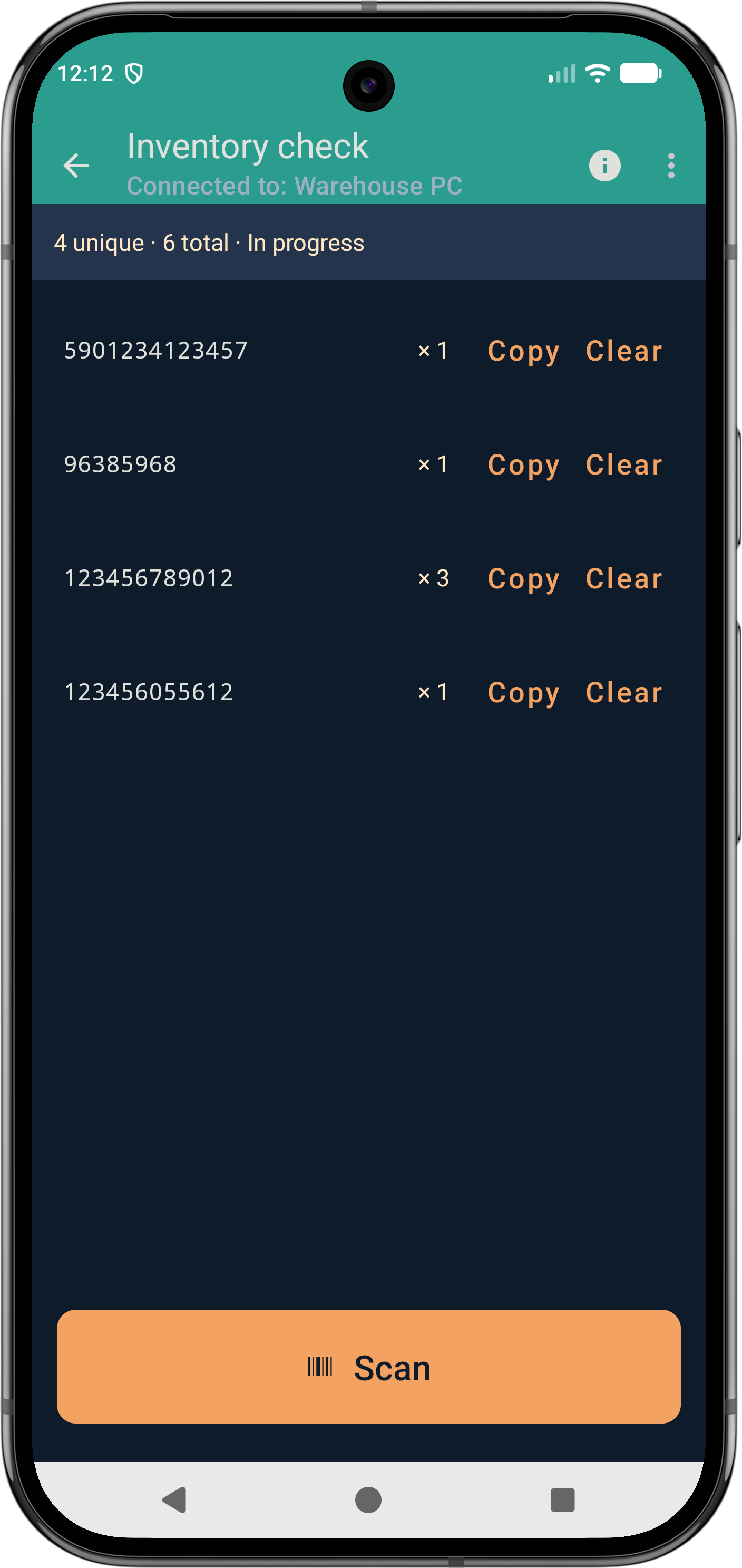
- Scanning
- Each scan adds one to that barcode. The screen shows how many unique codes and the total quantity. Counts sync to the companion as you scan and are not typed into a PC field.
- Quantity
- Tap the amount on a row to type a new whole number of at least 1. Clear still removes the row. A finished count does not accept a new amount.
- Copy
- On a row. Copies that barcode, a tab, then the quantity.
- Clear
- On a single row. Removes that barcode and its quantity from the count.
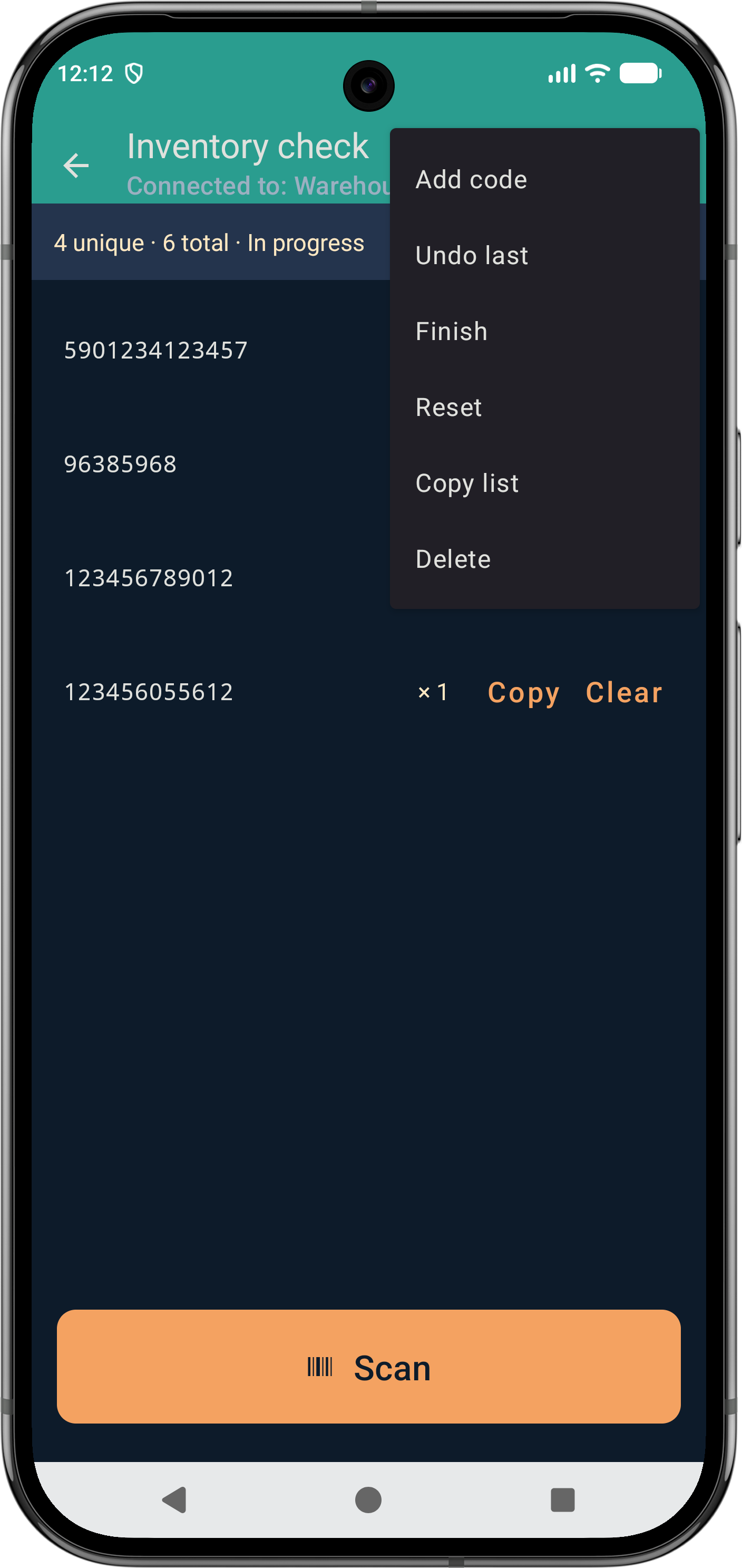
- Add code
- In the menu. Types a code and a quantity, which starts at 1, when the item has no barcode to scan. A new code becomes its own line. A code already in the tally adds that quantity onto the existing line. A finished count does not accept new lines.
- Undo last
- Removes the most recent scan from the tally. It does nothing if the count is empty.
- Finish
- Closes the count and sends the final tally to the companion. Further scans on that session do not add quantity.
- Reset
- Clears every quantity and starts the same named count over.
- Copy list
- In the menu. Copies the tally the same way, one barcode per line. Nothing is copied when the tally is empty.
- Delete
- Removes the count on the device and, if connected, on the companion.
Companion home
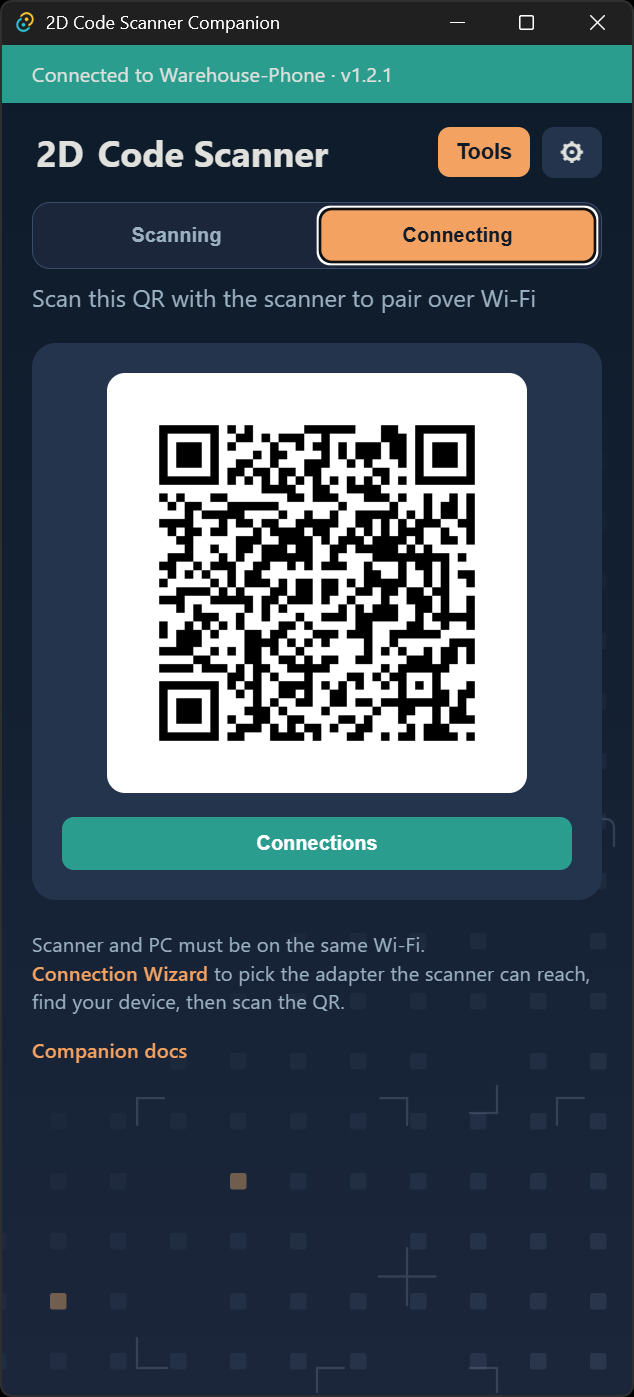
The home window has two tabs. Connecting is the pairing screen. Scanning shows the latest barcode and earlier scans. Inventory work is under Tools.
- Status
- The bar under the window title. It reports whether the companion is starting, waiting for a scanner, or which scanner is connected. Click it to open Connections. If it never connects, see network troubleshooting.
- Connecting
- Shows the pairing QR, the Connections button, and the link to the Connection Wizard.
- Pairing QR
- The code the scanner reads to pair. It carries the PC address, port, and pairing token. It updates when you change the network, the port, or regenerate it.
- Connections
- Opens the scanners linked to this PC. Disconnect drops the live link and keeps the pairing. Forget also removes this PC from that scanner.
- Connection Wizard
- Link under the Wi‑Fi hint. Opens the same wizard as Settings → Connection Wizard.
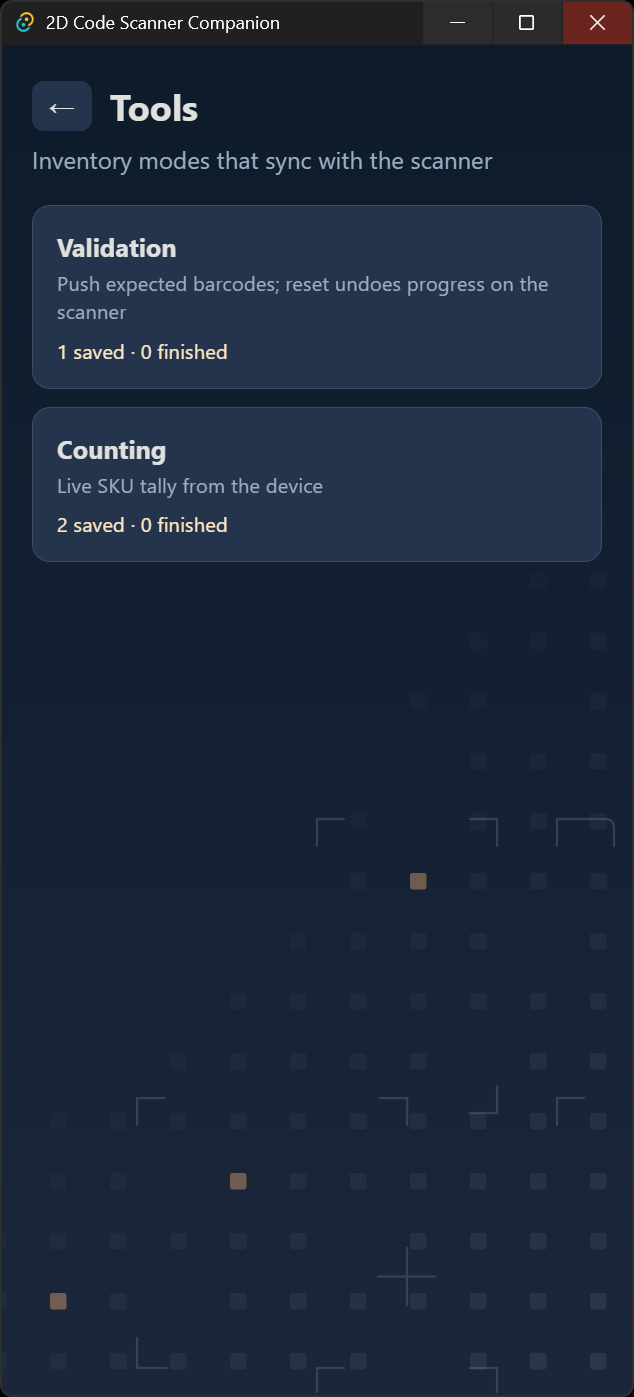
- Tools
- Opens Validation and Counting. The same modes are on the device, under Sessions.
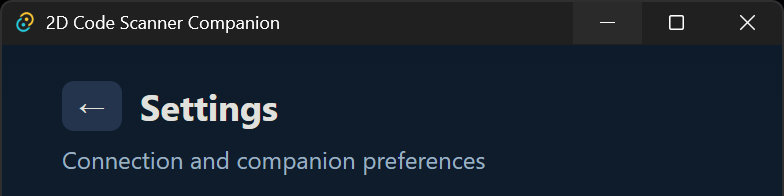
- Settings
- The gear at the top right. Opens connection and companion preferences.
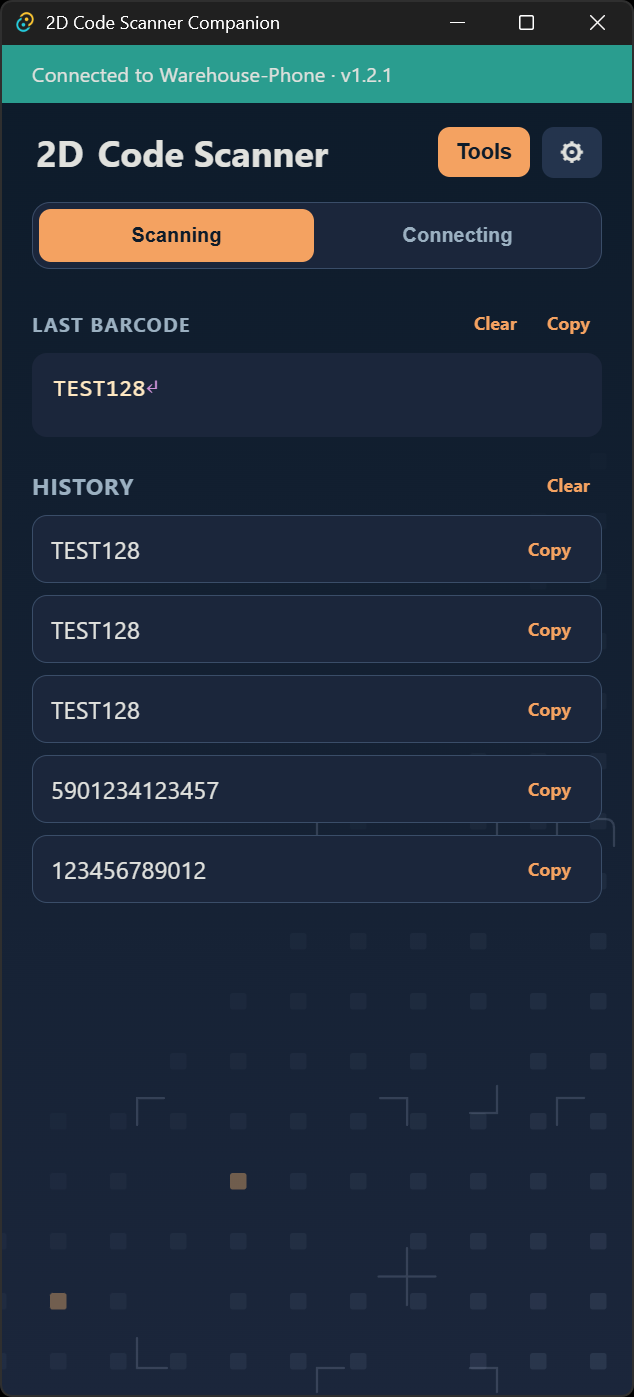
- Scanning
- Shows the last barcode the companion received, including scans that were not typed into another window.
- Last barcode
- The latest code. Copy puts it on the clipboard. The button stays off until a barcode has arrived. Clear removes that latest code.
- History
- Earlier scans, newest first. Each row has Copy. Clear removes those earlier scans and leaves the last barcode. With scan history at 0, this list stays hidden.
- Validation
- Opens saved checklists. The card shows how many are saved and how many are finished. The matching list on the device is what gets ticked off.
- Counting
- Opens saved tallies. The card shows how many are saved and how many are finished. The live tally is on the device.
- Tray icon
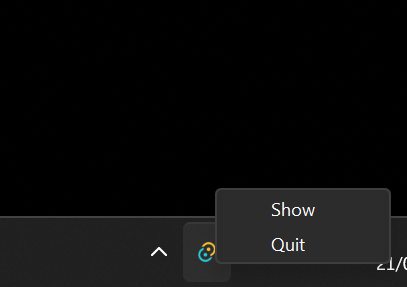
- The companion has to stay running for a scanner to remain connected and for codes to be typed into another program. The window itself is only needed while you pair, open Tools, or change settings. After that you close it and work where the cursor is. The tray icon is the companion still running with that window hidden. Left-click the icon, or choose Show, to bring the window back. Quit exits the companion and drops the link. With Close to tray on, the window close button hides here instead of quitting.
- Companion docs
- The link under the Wi‑Fi hint. Opens this page in the browser.
Companion settings
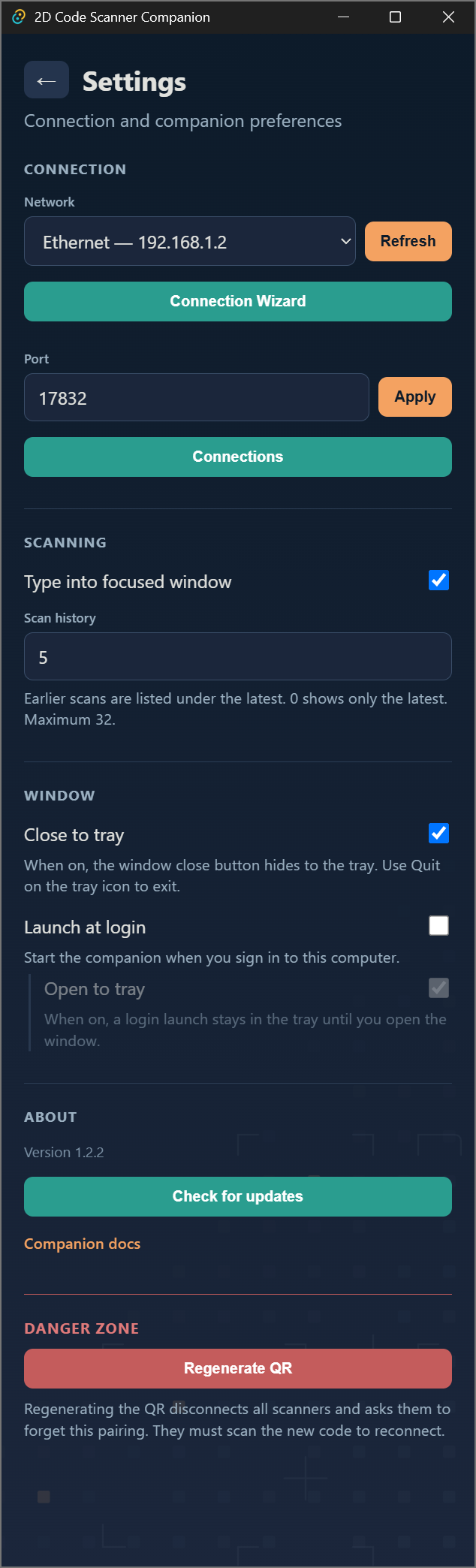
- Network
- The LAN address printed into the QR. Each entry is an adapter name and its address. If the PC has more than one, pick the one the scanner can reach. The choice is kept for the next launch. An address that is no longer present is marked unavailable. Refresh loads the adapter list again.
- Connection Wizard
- Opens the Connection Wizard.
- Port
- The port the scanner connects to. TCP and UDP share it: the connection, DHCP rediscovery, and the scanner list in Connection Wizard. The default is 17832, and allowed values run from 1024 to 65535. Apply saves it and refreshes the QR. The scanner and any firewall rule have to allow this same port for both TCP and UDP.
- Connections
- Opens the scanners linked to this PC, the same list as on the Connecting tab.
- Type into focused window
- On by default. Each wedge scan is typed where the cursor is, then Enter, Tab, or nothing, depending on the device setting. Turn it off to keep receiving scans in Last barcode without typing them into another program. Validation matches and count scans are never typed, even when this is on.
- Scan history
- How many earlier scans the Scanning tab lists under the latest. 0 shows only the latest. The maximum is 32.
- Close to tray
- On by default. The window close button hides the companion in the tray and leaves the link up. Turn it off if closing the window should quit the app.
- Launch at login
- Off by default. When on, the companion starts when you sign in on Windows, macOS, or Linux, so a scanner can reconnect without opening the app first.
- Open to tray
- On by default, under Launch at login. A login launch stays in the tray until you open the window. Turn it off to show the window at login. It applies only to that automatic start.
- Regenerate QR
- Creates a new pairing token and disconnects every scanner. Saved companions cannot reconnect until they scan the new QR. Use it when you want to invalidate old pairings, not when only the IP address changed.
- App version
- The companion version, shown above Check for updates.
- Check for updates
- Looks for a newer companion. A line under the button says what it found, including when you are already up to date or the check failed. The same check can run on launch.
- Companion docs
- Opens this page in the browser, at Companion settings.
- Download
- On the update dialog. Opens the installer for the newer version.
- Later
- Closes the update dialog and asks again next time a newer version is found.
- Skip this version
- Hides the prompt for this particular version. A later version will ask again.
Connection Wizard
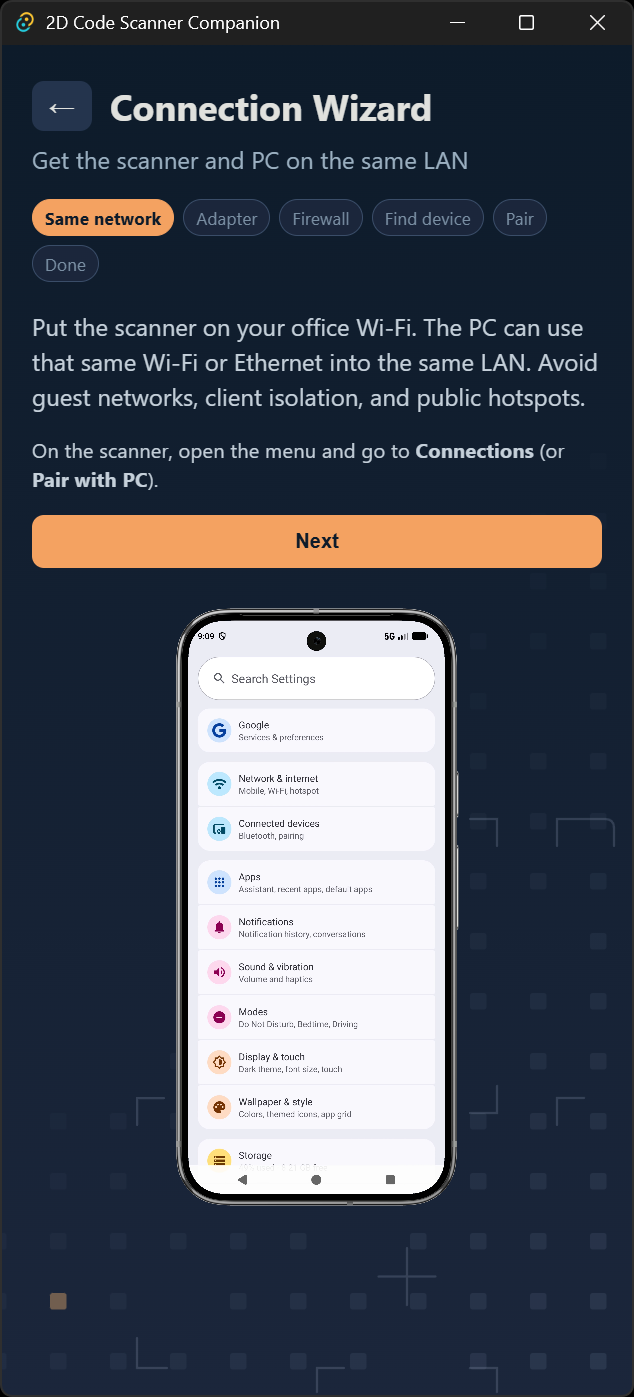
Opened from Connecting or from Settings. A successful connection finishes the wizard. You can skip discovery and pair from the home QR later.
- Steps
- Same network, Adapter, Find device, Pair, then Done. The open step is highlighted.
- Next
- Moves to the next step. Back returns to the previous one.
- Same network
- Put the scanner on the office Wi‑Fi. The PC can use that Wi‑Fi or Ethernet on the same LAN. On the scanner, open Connections or Pair with PC. Allow TCP and UDP 17832 (or the port under Settings). On Windows, a Private network profile is the one that accepts this.
- Adapter
- Choose the LAN address the scanner can reach. Skip VPN, virtual machine, and hypervisor adapters. Refresh reloads the list.
- Find device
- Scanners with Connections open appear in the list. Skip for now leaves pairing for the home QR.
- Pair
- Scan the QR with the selected scanner. Skip for now returns you to the home QR.
Companion validation
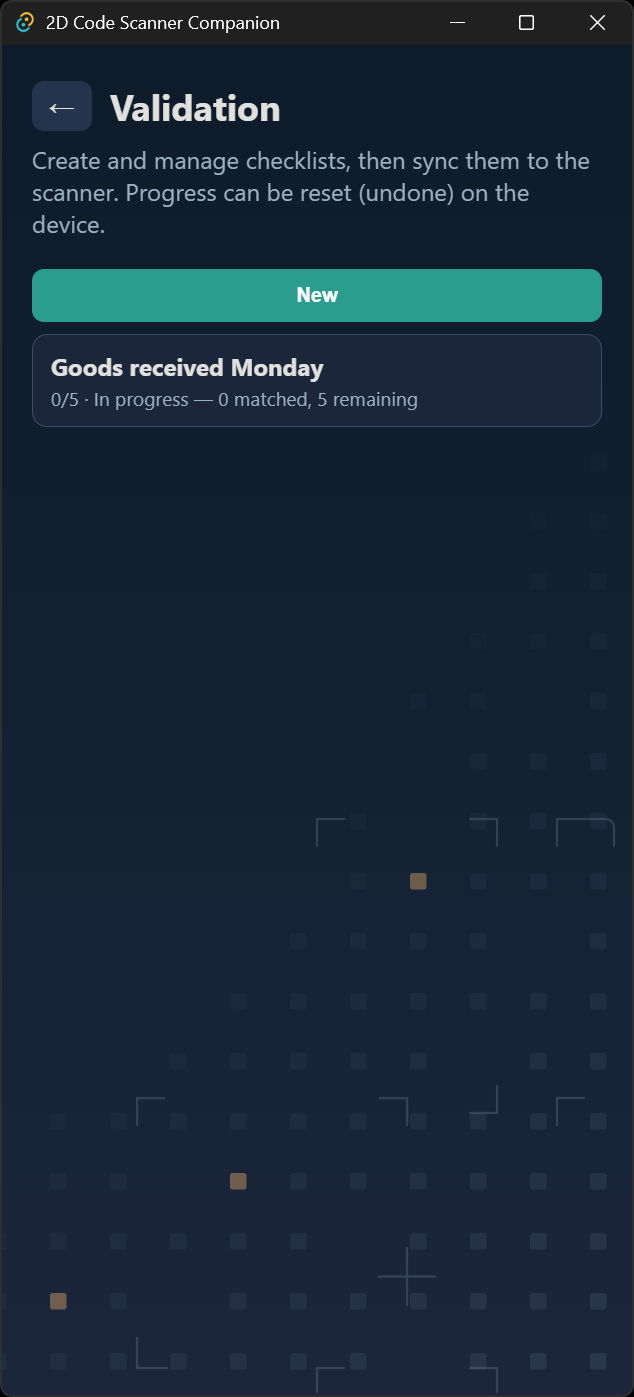
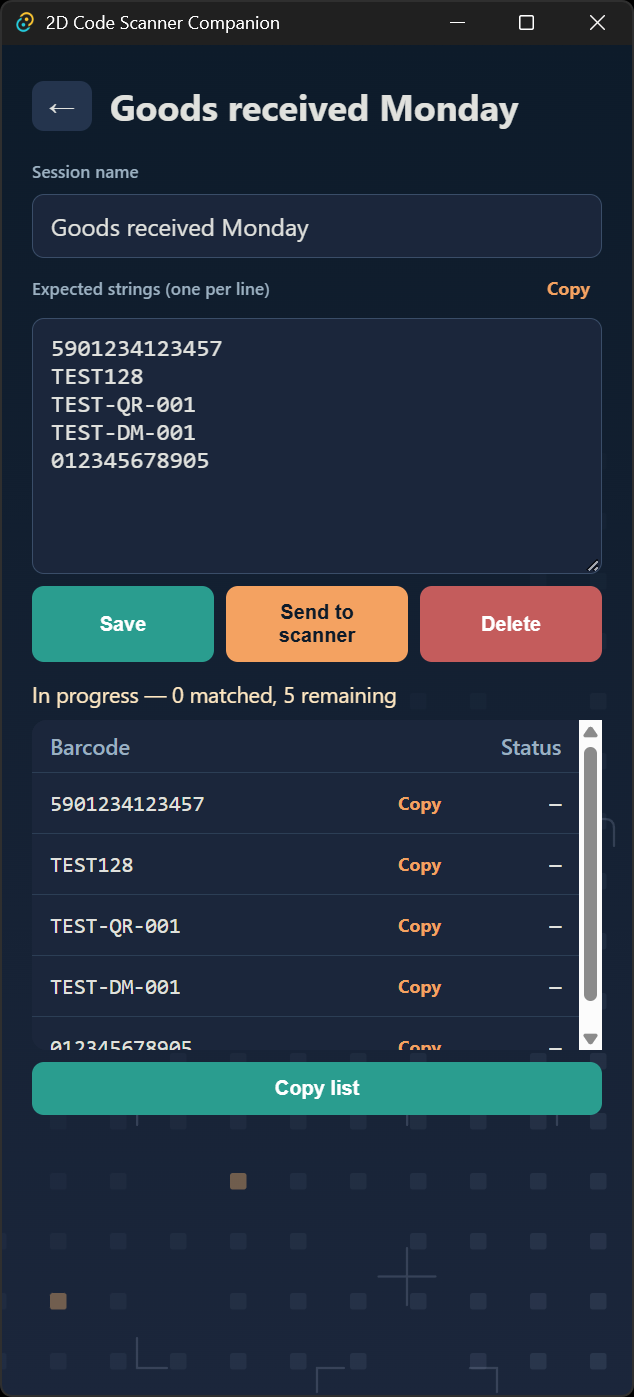
Tools → Validation. The card on Tools summarizes saved checklists. The matching list on the device is what gets ticked off.
- New
- Opens an empty checklist. The status line says to save or send it to create it.
- Saved list
- Each saved checklist is a row. The row shows the name, how many items are checked, and the status. Click a row to open it. An empty library says no saved sessions yet.
- Session name
- The name shown in the library and on the scanner.
- Expected strings
- One barcode per line. Blank lines are ignored. These are the items the scanner will tick off. Copy copies those lines.
- Save
- Stores the name and the list in the companion library. It does not send the list to a scanner. It needs a session name and at least one barcode; otherwise the status line says what is missing.
- Send to scanner
- Pushes the list to the connected device and marks it sent, with the item count. Sending the same session again updates that checklist. Items that are already checked stay checked when the barcodes still match. It needs a session name, at least one barcode, and a connected scanner.
- Delete
- Asks you to confirm, then removes the checklist from the companion and from a connected scanner. If nothing is selected, the status line asks you to select or save a session first.
- Status table
- Barcode and status. A check mark means the device has ticked that item; a dash means it is still open. The table updates as the scanner reports progress, including when the list is finished. An empty list shows a dash. Copy on a row copies that barcode.
- Copy list
- Copies every barcode, one per line.
Companion counting
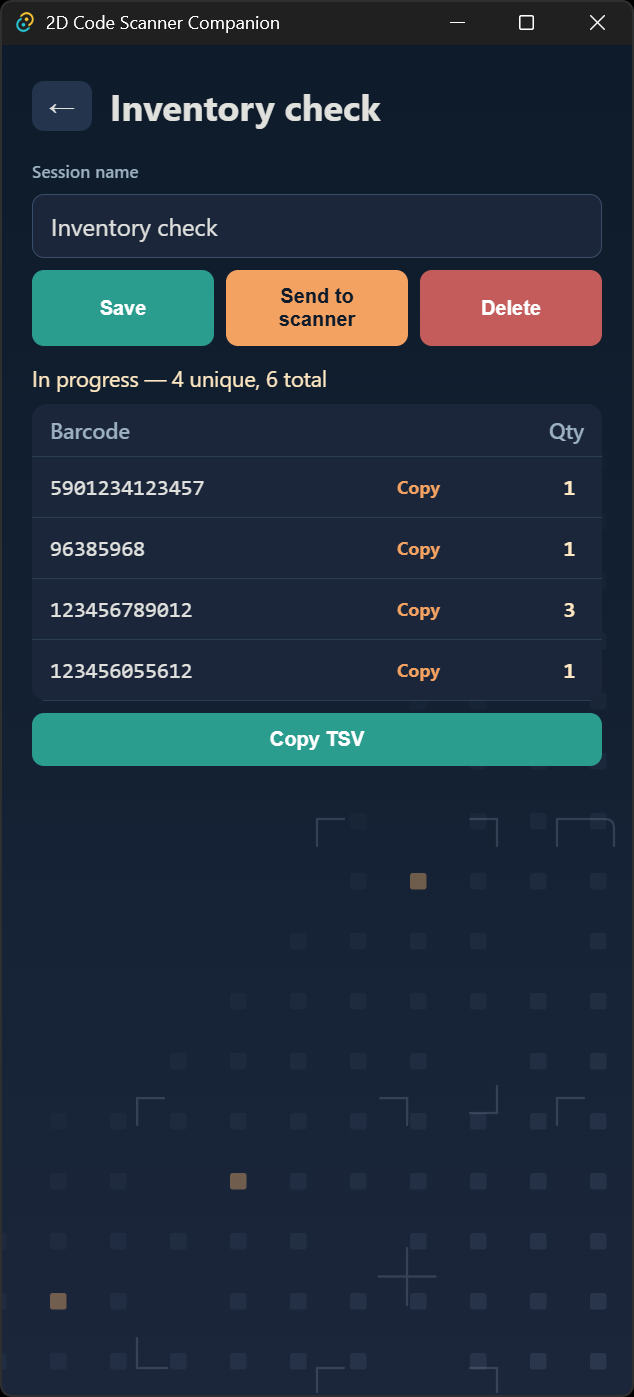
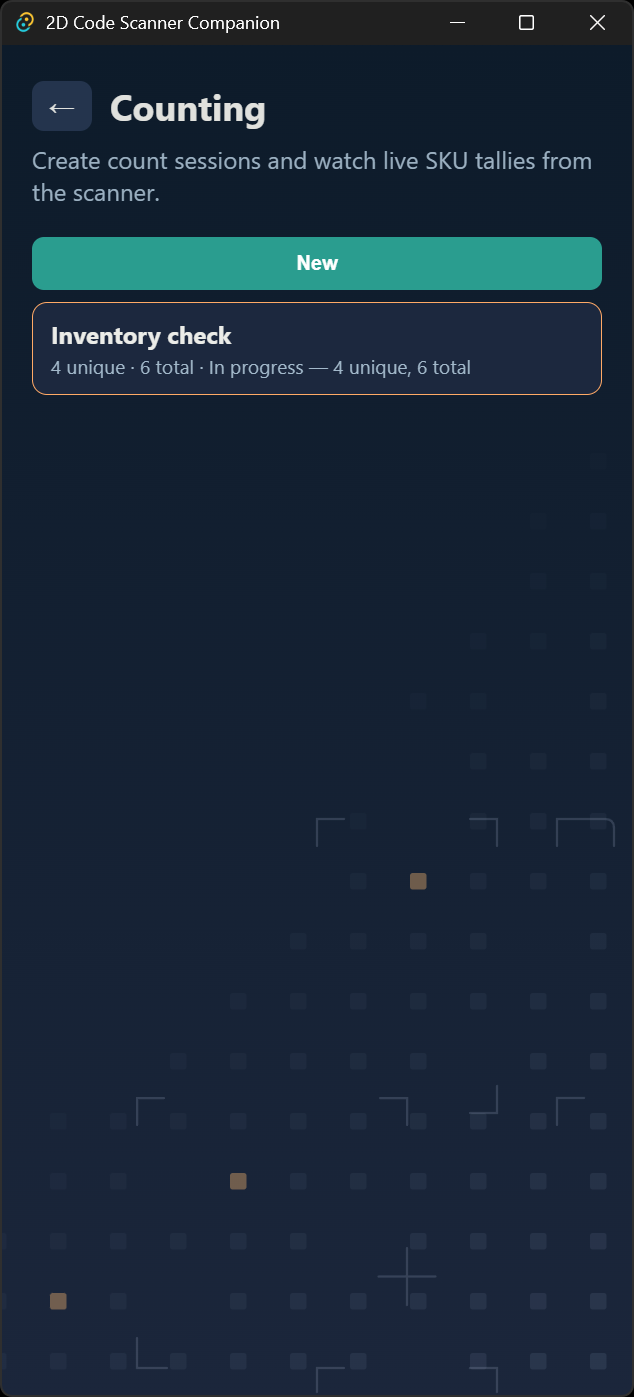
Tools → Counting. The card on Tools summarizes saved tallies. The live tally is on the device.
- New
- Opens an empty count.
- Saved list
- Each saved count is a row with its name and status. Click a row to open it. An empty library says no saved sessions yet.
- Session name
- The name shown in the library and on the scanner.
- Save
- Stores the count in the companion library. It does not send it to a scanner.
- Send to scanner
- Pushes the count to the connected device so that device can tally into this session. It needs a connected scanner.
- Delete
- Asks you to confirm, then removes the count from the companion and from a connected scanner. If nothing is selected, the status line asks you to select or save a session first.
- Quantity table
- Barcode and quantity. It updates live as the device scans, undoes the last scan, clears a row, resets, or finishes. An empty tally shows a dash. Click a quantity to type a new whole number of at least 1. Enter or leaving the field saves it; Escape cancels. A finished count does not accept a new amount. If no scanner is connected, the amount stays here until the count is sent. Copy on a row copies that barcode, a tab, then the quantity.
- Copy TSV
- Copies the table to the clipboard. Each line is the barcode, a tab, then the quantity. If the table is empty, nothing is copied and the status line says so.